
Your project brief says risk. Later, you search for concern. Terraphim connects the two so a change of wording does not hide the decisions you need.
The inspiration came from Jason Fried’s original Write_On video and its idea of “alternative control”. It prompted Alex Mikhalev to return to Terraphim Editor, a Rust/WebAssembly project he had abandoned two years earlier, with a clear purpose: connect wording alternatives to a reusable knowledge graph and carry that meaning into search.
Try Terraphim Editor · Read the narration
Choose the words that fit
In our community garden brief, timber might arrive late. The team has decided to keep a backup supplier. Add Concern as an alternative to Risk, then swap between them. The other wording stays attached to the document.
Share what those words mean
Open Knowledge graph from the Markdown export menu. The editor shows Risk ↔ Concern and its actual definition:
synonyms:: Risk, Concern
Download the graph and the clean text. This explicitly shares the document's authored synonym groups as a Terraphim thesaurus; it does not silently change your active role. The saved example contains Risk, with no literal occurrence of Concern.
Find the decisions using either word
Use the graph downloaded from that editing session:
terraphim-grep concern --thesaurus knowledge-graph.json --paths corpus -C 2 --search-only --json
The actual result contains three risk passages and their related decisions, with file and line locations. No generated answer is requested.
Replace --search-only with --answer for synthesis:
terraphim-grep concern --thesaurus knowledge-graph.json --paths corpus -C 2 --json --answer
The video shows the generated summary and its references to the same three passages. Decisions remain decisions: the source does not establish whether they have been carried out. Check the evidence alongside any generated answer.
Editing and local search use your local data. Optional synthesis sends the retrieved passages to your configured model provider.
Try it with an Obsidian vault
Keep the words that describe a concept in the note that owns it. In this example, Risk.md contains the actual synonyms:: Risk, Concern property and embeds the community garden brief. The separate brief still says risk, never concern. The search-results note contains saved passages, with no synonym definition.
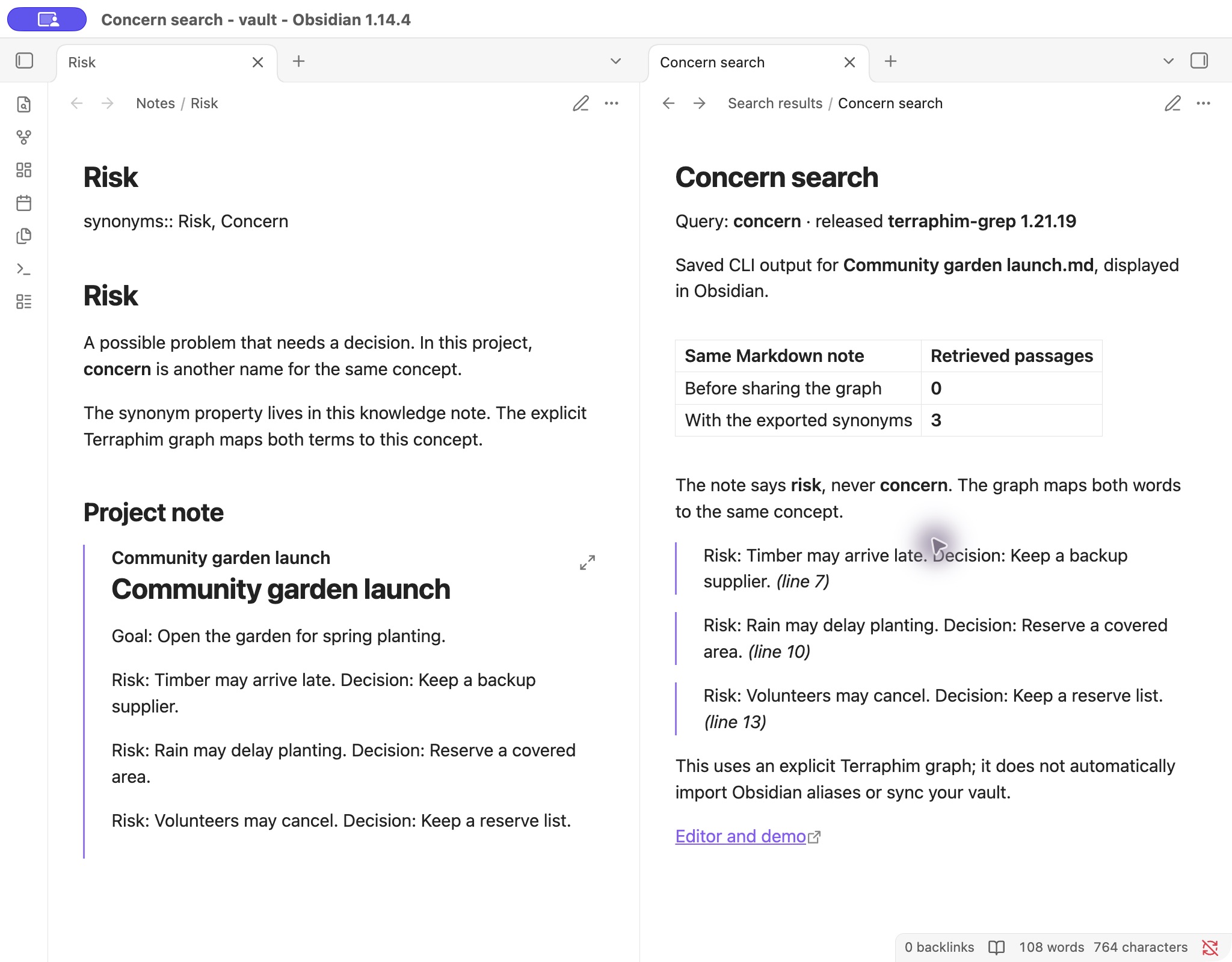
Download the Obsidian demo vault ZIP. Extract it, open the included obsidian-demo/vault folder as an Obsidian vault, and open Notes/Risk.md. Open Search results/Concern search.md alongside it to inspect the saved output. No community plugins are required.
To reproduce the retrieval, install terraphim-grep v1.21.19, open a terminal in the extracted vault directory, and run:
terraphim-grep concern --thesaurus "Knowledge graph/baseline-role.json" --paths "Notes/Projects" -C 2 --json --search-only
terraphim-grep concern --thesaurus "Knowledge graph/knowledge-graph.json" --paths "Notes/Projects" -C 2 --json --search-only
The released binary returned zero passages with the baseline graph and three exact risk-and-decision passages with the exported graph, at lines 7, 10 and 13. The commands search only the project brief directory, excluding the concept definition and saved results. Inspect the baseline output, synonym output, execution receipt and file checksums.
Terraphim’s synonyms:: convention uses Logseq-compatible Markdown property syntax. Obsidian’s native aliases use YAML aliases. This example supplies the same graph exported by the editor explicitly: saving a note does not automatically rebuild the graph or synchronise the vault. Search runs in the CLI; Obsidian displays the notes and saved results. The capture reruns local retrieval only; the video above shows the separate synthesis comparison.
Try it with a Logseq graph
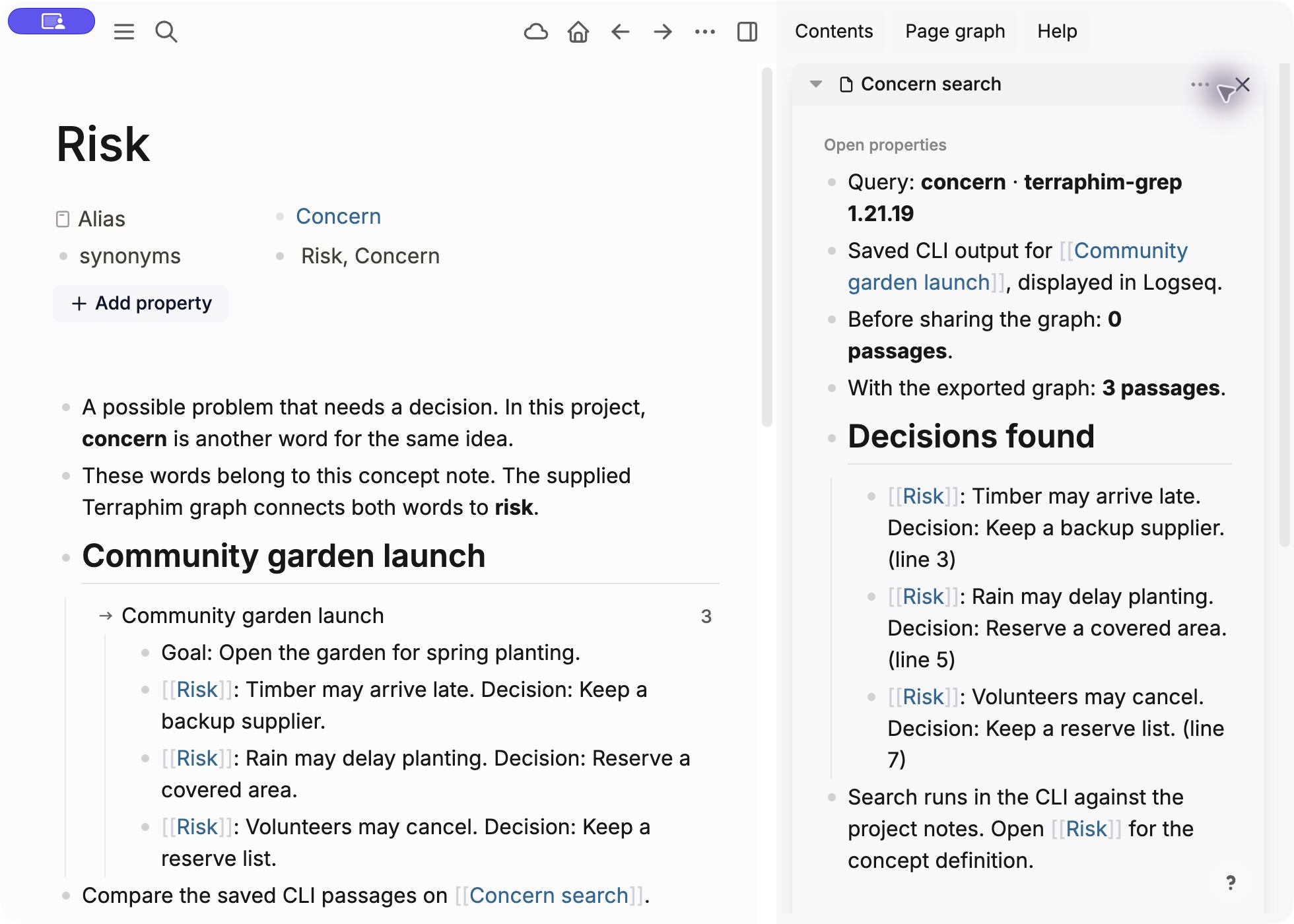
Prefer linked blocks? Open the same garden project in Logseq. The Risk concept page owns the wording relationship and embeds the project brief. Its properties are:
alias:: Concern
synonyms:: Risk, Concern
alias:: gives the page another name inside Logseq. Terraphim’s synonyms:: property records the words connected by the exported search graph.
- Download the Logseq example ZIP and extract it.
- In Logseq 2.0, choose Import existing notes → File to DB graph, then select the included
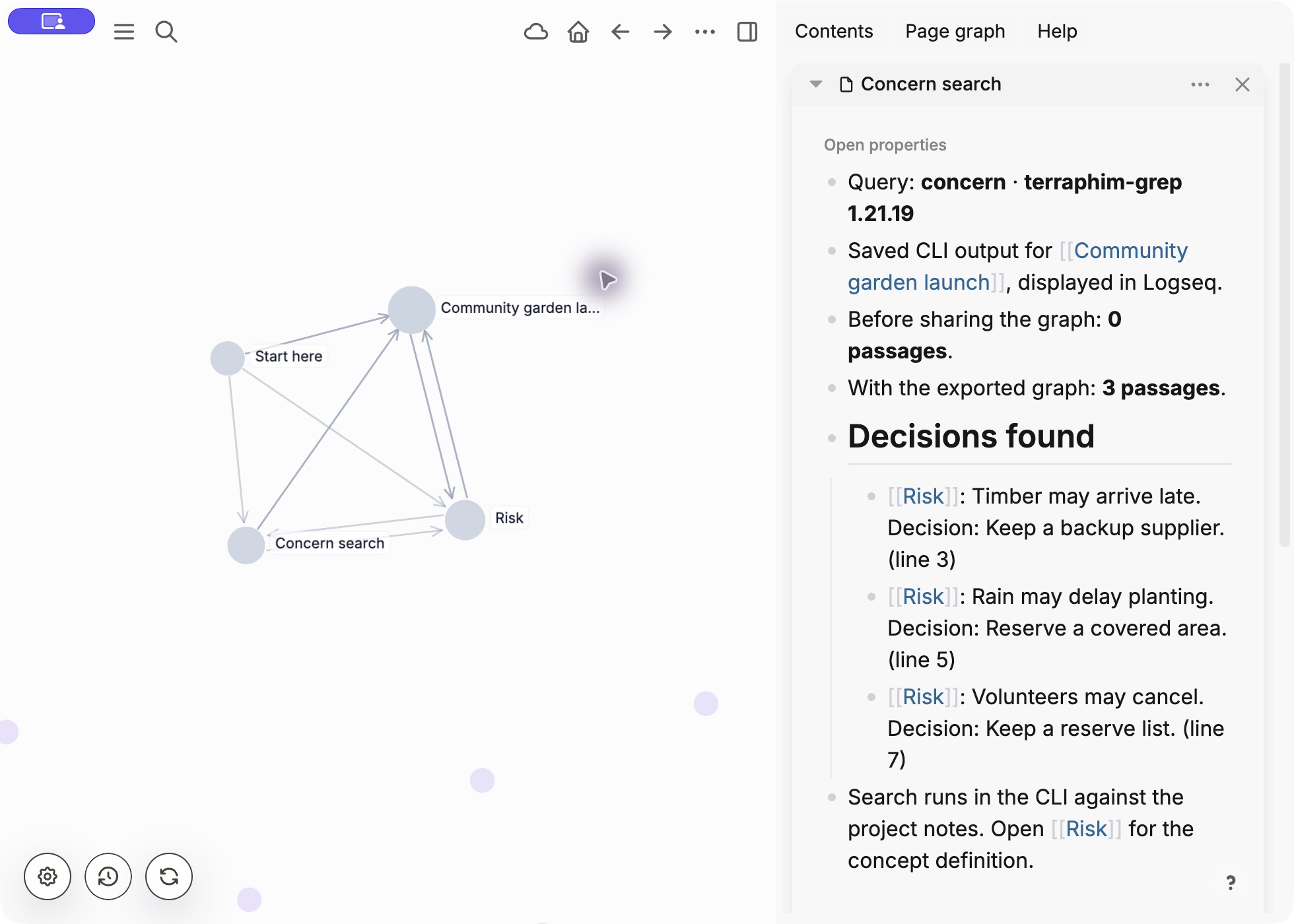
graphfolder. If you use a Logseq version with file graphs, open that folder directly. - Open Start here, then Risk. Search for Concern search and choose Open in sidebar to compare the saved results with the project note.
From a terminal in the extracted graph folder, run:
terraphim-grep concern --thesaurus baseline-role.json --paths pages/Projects -C 2 --json --search-only
terraphim-grep concern --thesaurus knowledge-graph.json --paths pages/Projects -C 2 --json --search-only
The first search returns zero passages. The shared synonym graph brings back three decisions: keep a backup supplier, reserve a covered area and keep a volunteer reserve list. The commands search only the project notes, leaving concept definitions and saved results outside the search.
Compare the baseline and synonym search output, or follow the download instructions. The CLI reads the included Markdown files; Logseq 2.0 imports a copy into its database. Use the extracted folder for these commands. File checksums are included.
Try it yourself
- Download the complete example ZIP. It includes the project brief, synonym graph and a step-by-step README.
- Install terraphim-grep for macOS or Linux.
- Extract the ZIP and follow the README to search the brief, first without the synonym relationship and then with it. Add
--answerwhen you want a summary alongside the source passages.
Searching for concern returns no passages before the graph is shared. With the graph, it finds all three risk passages and their related decisions. Compare the saved results before sharing, with the synonym graph, and with a generated summary.
Then try the same steps with a pair of words from your own project notes.
Explore the files
- Synonym graph
- Project brief — the sample text searched in the demo
- Markdown with wording alternatives — reopen it in the editor
- Recorded search results
- Recorded summary and references
- English subtitles (SRT)
The video uses a sample project brief and synthetic British English narration. The graph and search results are saved outputs from the demonstrated workflow. Recording details and versions, commands and file checksums are available with the downloads.